Introduction
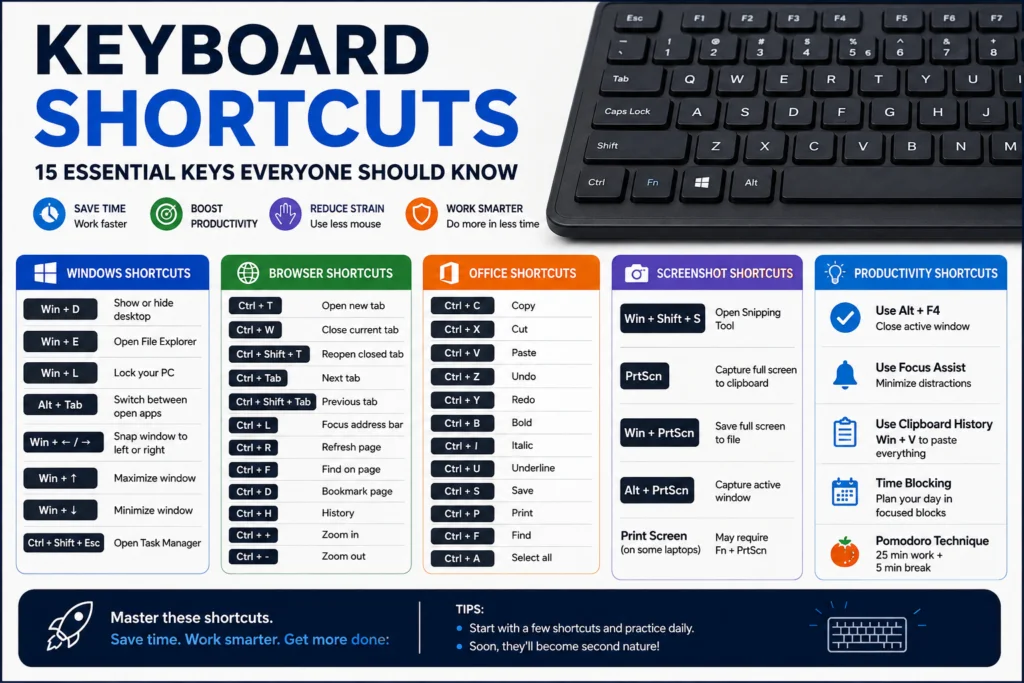
The most effective approach for increasing productivity and decreasing physical stress in terms of working with computers is knowing essential shortcuts. Relying only on the mouse will result in excessive number of clicks and waste of time. Using keyboard shortcuts allows to perform actions instantly and work effectively both when browsing Internet and using system windows.
In order to become more productive, one has to learn shortcut combinations based on modifier keys such as Control, Command, Alt, Shift, and others. Such knowledge changes the way a person interacts with computer as it enables one to edit text, restore browser tabs, resize and move windows and do much more in split seconds.
For a student who is writing an essay, for an office worker working with complex spreadsheets, or for a regular user who spends hours surfing the net, shortcuts make the basis of digital world.
These are simple combinations of keys which enable you to do things very quickly without necessarily having to use the mouse or touchpad. Keyboard shortcuts make it easier to copy and paste texts, switch between applications, search for information, manage your files, and navigate on websites or documents.
Knowing some keyboard shortcuts could enable you to be more productive in computer usage for various activities such as students, office employees, and people who work a lot with the computer.
Examples of simple keyboard shortcuts include Ctrl + C, Ctrl + V, Ctrl + Z, and Alt + Tab. In this tutorial, I am going to provide you with essential keyboard shortcuts that can help you work more efficiently on Windows computers.
Windows Shortcuts
It goes without saying that one must know Windows’ native keyboard shortcuts in order to increase the efficiency of his or her digital workflow. Traditional operating systems were built on several layers of menu, which need to be navigated using a mouse and clicked. By turning physical gestures into keyboard combinations, one can get access to the heart of the Windows architecture. In addition, this will minimize the amount of physical movement between mouse and keyboard usage, which is likely to cause any kind of wrist problems in the future.
The foundation for Windows navigation can be represented by universal control combinations that give users an ability to manage basic file and text operations. Basic things like copy, paste and undo accidental action can be easily performed by user with the help of keyboard, regardless whether he or she deals with a document, email or photo editing software. But it is possible to get much more with the dedicated Windows Logo Key.
It is the best way to manage windows, perform tasks at a faster pace and multitask. Windows’ shortcuts that make windows appear exactly on the left or right halves of the screen provide perfect possibility to work with two windows simultaneously.
Also, administrative shortcuts like launching File Explorer, accessing multi-selection clipboard history or locking a computer become very useful for managing digital privacy and organizing folders. All in all, learning these shortcuts changes the interaction with a computer from a mere navigation to efficient actions. It helps students to write an academic paper, financial analysts to filter through complex corporate spreadsheets or even ordinary people just to surf the Internet.
The report investigates changing consumer choices and shopping habits of Generation Z (Gen Z) in sustainable fashion. As the first generation to grow up in the digital age, Gen Z has an increasing impact on the economy and a strong commitment to environmental issues which will influence retail.
This paper combines research about incentives for their sustainable choices, such as their needs for brand transparency and commitment. The report is dedicated to the contradictions of their behavior, focusing on the value-action gap—where their pro-environmental attitudes and actual purchases differ due to economic constraints and the impact of fast fashion.
Browser Shortcuts
The use of keyboard shortcuts in browsers is one of the techniques you can resort to for quick web navigation without extensively using the mouse for common commands. For instance, clicking Ctrl + T creates a new tab in the browser and using Ctrl + W will close the tab that you are currently browsing.
In addition, to undo the closing of a tab, you may use Ctrl + Shift + T and for navigating through open tabs –> Ctrl + Tab and for the backward navigation –> Ctrl + Shift + Tab. Ctrl + L lets you to highlight the address bar for entering the web address or the term you are looking for. Moreover, Ctrl + R refreshes the page and Ctrl + F brings up the Find command for looking for distinct keywords.
The Ctrl + D creates a bookmark for the active page while Ctrl + H is for looking up the history of Internet browsing. You may even use Ctrl + Plus (+) and Ctrl + Minus (-) for zooming in on the page and vice versa.
Office Shortcuts
If you want to work quicker with documents, spreadsheets, and emails, there is nothing better than mastering office productivity shortcuts. The almost universal nature of commands across suites of productivity software such as Microsoft 365 or Google Workspace allows users to format text quickly without having to deal with the cumbersome top menu options.
A shortcut combination most basically makes it possible to perform a number of actions, including bolding (Ctrl + B), italicizing (Ctrl + I), and underlining (Ctrl + U). All the complex applications for data, such as Excel and Google Sheets, offer many useful shortcuts, which boosts your navigation speed significantly within this complex software.
As for communication tools, like Outlook or Gmail, the use of hotkeys makes it possible to send draft messages or reply to messages without actually having to go through the whole interface. It can generally be concluded that the integration of all these shortcuts into your daily work process allows you to avoid endless clicking of your mouse, thus minimizing wrist fatigue at work and achieving an impressive overall speed of implementation of all your projects.
Shortcuts on Office can enhance the speed and efficiency of working on documents, spreadsheets, and presentations. One of the best shortcuts are the ones for copying or pasting content such as Ctrl + C, or Ctrl + X for copying and cutting respectively. Undoing and redoing actions can be performed by Ctrl + Z, Ctrl + Y. Also, shortcuts like Ctrl + B, Ctr + I and Ctrl + U are ideal for making text bold, italic or underlined in MS Word. Saving work can be done via Ctrl + S and printing can be made with Ctrl + P.
In MS Excel, Ctrl + Arrow Keys can allow fast movements through the data. Moreover, Ctrl + Shift + Arrow Keys can activate larger portions of data. In PowerPoint, shortcut Ctrl + M creates a new slide and pressing the F5 key will start a PowerPoint show from the start. Although there are different shortcut keys, mastering the shortcuts available in MS Office will help to minimize mouse movements.
Screenshot Shortcuts
One of the most essential capabilities is mastering the keyboard shortcuts for screenshots. The common methods of accessing screenshots using menus or applications complicate interaction; however, there are shortcuts native to the OS that make it possible to share everything seen on the computer screen in no time.
The process works out differently depending on which operating system you have, but the major systems come with a professional snipping application already built in. On Windows, when you press Win + Shift + S, the display becomes dimmed, and the Snipping Tool opens allowing you to draw a rectangle over a selected area, create freeform snips, or just save the current window to the clipboard.
On the other hand, if you run on macOS, by combining Cmd + Shift + 4 you make the cursor a crosshair, so that you can take a screenshot of any part of the screen, which will automatically be saved as a clean image file. Similarly, Cmd + Shift + 3 captures everything displayed on the computer screen. Thus, these quick combinations help to eliminate the need for cumbersome smartphone screen photos, keep the desktop clean, and facilitate professional troubleshooting, tutorial creation, and teamwork.
Using screenshot keyboard shortcuts, capturing what is shown on your screen is made possible without the need for extra applications. In Windows operating system, Windows + Shift + S is employed to invoke the Snipping Tool, and it enables the user to highlight a specific section on their screen. The PrtScn button can be pressed to take precedence over the capture to the clipboard.
Plus, using the combination Windows + PrtScn will automatically save the image of the screen in the Pictures/Screenshots folder for Windows versions that support this function. Using the combination Alt + PrtScn, the user will get the current screen window saved on the clipboard. The Print Screen key can be referred to differently or may require a combination of keys depending on the laptop’s model or type of keys on the keyboard used.
By getting accustomed to the shortcut keys, users can save time while taking screenshots in cases of error message revelation, information saving, tutorial making, or sharing anything on the screen.
Productivity Tips
Maximizing productivity entails creating your daily focus roadmap, automating low-value activities, and fine-tuning your digital surroundings. Depending on sheer willpower often results in brain fatigue, while employing proven time-management techniques allows continued focus on major projects.
At the core of such solutions lies the “Time Blocking” concept. It allows you to allocate certain fixed time frames for a specific goal and not react to every incoming message. The “Pomodoro Technique” aims at maintaining concentration. The method includes working for 25 minutes without any interruption followed by a five-minute break. Another good method is “Eat the Frog,” which helps focus on the most complicated or annoying task in the morning when you have the most strength and willpower.
Apart from proper time management, it is necessary to manage your tech infrastructure. You should get rid of unnecessary notifications and use the built-in focus modes on your computer. You can also free your head from thoughts by using some task managers and have no problems with creating documents by utilizing documents’ templates.
I believe that knowing keyboard shortcuts is important for being able to quickly perform repetitive actions that would otherwise be done with a mouse. First, learn a few keyboard shortcuts, for instance, copy, paste, undo, save, or switch program. When you feel comfortable with these, then proceed to learning ones relevant to your day to day life. For instance, if you are a student, learning shortcuts in your browser or office suite maybe more helpful than ones in excel.
If you are an office worker, maybe excel and file shortcuts are more helpful. After some time learning and applying new shortcuts, you will be able to remember them without much though and be proficient in their use. It is good to periodically practice your keyboard shortcuts, so that you never get out of practice.
You can also write down rarely used shortcuts somewhere in a place you can easily see them, until you get comfortable with them. With the use of keyboard shortcuts you can increase your efficiency while doing simple tasks that otherwise would take much longer to perform with a mouse.
Conclusion
Keyboard shortcuts are the simplest and most effective tools to increase the efficiency of using any computer device. A huge number of them in Windows help to customize the application, control the working environment and interact with the file system. Browser shortcuts and Office shortcuts significantly facilitate working with web resources and office applications.
Moreover, such keys as Alt + Print Screen allow to collect the necessary information directly in the document without leaving it. The above examples of computer keyboard shortcuts are by no means an exhaustive list of abbreviations, so that you can spend time as little as possible on the most common operations. The most frequently used combinations will become familiar over time, and you will begin to use them automatically and without thinking.
I think there are some pretty fundamental things one needs to do in order to get more productivity out of ones computer usage. Things like fluid software practices, fast keyboard shortcuts, and time management tactics among other things.
If you can streamline away the mouse, keep everything synced in one place, and safeguard your time it will remove a lot of the friction from your normal computer usage. I do think that getting things done, really productive things, should not be a frantic activity where your working until you drop.