Introduction
Choosing the right storage drive makes a huge difference in terms of speed, space, and overall performance of your computer. There are two types of storage drives available currently namely, SSDs (Solid State Drives) and HDDs (Hard Disk Drives). SSDs are comparatively newer in the market and utilize flash memory to store data which gives them quite an advantage over the traditional hard drives.
SSDs being flash memory cards do not have any mechanical parts and hence are much faster than HDDs and allow faster boot times and application launches. These drives are usually expensive than HDDs especially when it comes to larger storage capacities. HDDs on the other hand are comparatively slower but offer much larger storage at cheaper prices. Both the drives have their own advantages and are better suited for different users and different tasks. We will be taking a detailed look at the primary differences between these two types of storage drives including speed, price, durability, capacity, power consumption, and performance. This will help you understand which of the two drives suits your needs and preferences and accordingly take an informed decision before buying a new one.
Amongst many decisions you have to make when upgrading a computer or purchasing a new disk, the choice between a Solid-State Drive and a Hard Disk Drive becomes the most important one.
The selection will affect the performance of your system, its longevity, storage capacity, and speed. Despite the fact that both devices do precisely the same job – protecting your operating system, applications, and files – their technologies are completely different.It is vital for you to know how the two storage devices function in order to make a wise choice.
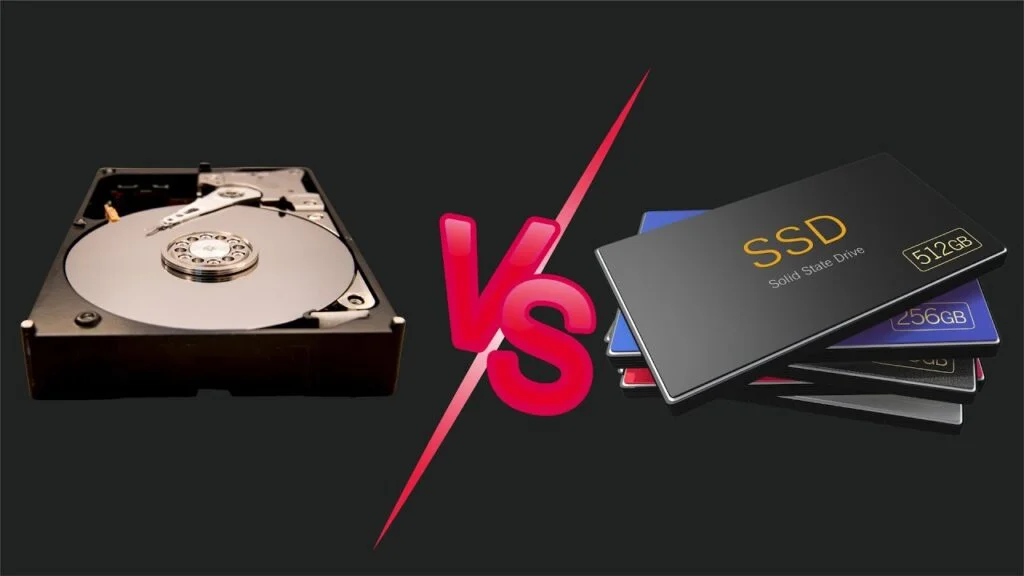
Critical Technologies DifferencesHDD (Hard Disk Drive): Uses a spinning disk and a mechanical read-write mechanism to access stored information.
SSD (Solid-State Drive): Utilizes flash memory without any moving parts; just like an enormous USB flash drive.
Decision-Making Guide Choose an SSD for: Quick start-up times, fast app loading, gaming, and stability.Choose an HDD for: Storing masses of information, cheap big volumes, backups, and NAS.
What is SSD?
SSD (Solid State Drive) is a type of storage device that is used for storing the operating system, programs, pictures, videos, documents, and other files. As opposed to HDD (Hard Disk Drive), SSD does not have rotating disks or any moving mechanical parts. SSD has flash memory to store data. Accessing data in SSD is quite fast.
It results in fast booting of computers with SSDs, quick opening of programs, and improved performance in routine tasks. Computers with SSD are also quieter than computers with HDDs owing to the absence of moving mechanical parts. Besides, SSDs are usually more resistant to shock than HDDs.
The devices have lower power consumption than HDDs which is an advantage for laptops. SATA SSDs and NVMe SSDs are two types of common SSDs. Despite the fact that the price of per gigabyte of SSDs is higher than that of HDDs, the ability to access data fast is a good justification to choose an SSD for your computer. SSD is a must-have device for those who need fast booting of Windows, quick programs, and fast computer operation.
Definition of an SSD
An SSD is a new type of computer hardware used for saving and retrieving files using flash memory. The SSD lacks the moving parts found in traditional hard disk drives (HDDs). It uses microchips connected together to store information, making it much faster, quieter, and more durable than traditional HDDs.Key Advantages of the SSDSpeed. It boots operating systems very quickly.
Also, it loads applications very fast.Durability. It can withstand physical shocks since it does not contain delicate mechanical components. Quietness. It generates no noise. It remains silent even when undergoing intensive read/write operations.Energy saving. It consumes less energy thus helping laptop batteries to last longer.Small form factors. Available in M.2 form factors, which can fit into thin laptops.
Common Form Factors of an SSD2.5-inch SATA: Looks like a small brick. Uses normal cables.
Used as replacement for laptop HDDs.M.2 NVMe: Looks like a stick of chewing gum. Directly inserted into the motherboard. Has the fastest data speeds.
What is HDD?
The Hard Disk Drive, or HDD, is an old-fashioned kind of hard drive designed to save operating system, programs, documents, pictures, movies, and various files. An HDD employs spinning magnetic disks, known as platters, and a moving read/write head. The mechanical nature of HDD means it is always going to be somewhat slower than SSDs and will take longer time to start Windows or run large applications.
Nevertheless, it is popular due to the large capacity with relatively cheap price per GB of storage space. The advantage of an HDD is that it gives you a lot of storage space in exchange for small money. HDD is also very popular as it gives you the opportunity to have several terabytes of storage space. But since HDD has moving parts it is highly vulnerable to external forces, like shaking or bumping. In case someone needs affordable and high storage capacity without need for the utmost speed, HDD is still an option.
An HDD or Hard Disk Drive is the conventional method of storing data using a mechanical structure. It was first invented by IBM way back in 1956 and has since been used as the storage medium for computers for many years. It stores data in the form of magnetic platters that use physical components to store and retrieve data from them.
Benefits of HDDStorage Space: The cost of storage per gigabyte is relatively low compared to an SSD. Storage capacity can go as big as 4 TB, 8 TB or even up to 20 TB plus.Long Life Storage: HDD is the best way to back up your data for future use and do not need to access it frequently.
Predictable Failure: HDD will usually give warning signals before a total failure occurs.
HDD OperationMechanical Platter: Spins at very high speeds which range between 5,400 and 7,200 RPM to store the digital bits.
Mechanical Arm: A mechanical arm that has a small read/write head on it searches or writes the bits on the spinning platters.
Physical Latency: Due to mechanical operation, it takes much time for the hard disk to access files.
Speed Comparison
In terms of performance in speed, SSD is much faster than HDD. The fact is that SSD has flash memory; therefore, accessing data requires no mechanical operations. As a result, if you install an SSD in your computer, the operating system will start faster, launching of any program will be quick, and file transfer will take less time. NVMe SSD is even faster than regular SATA SSD thanks to faster interface. Mechanical nature of HDD implies physical movements of components to access data.
Therefore, if you require good speed and performance, SSD is definitely preferable option. However, HDD can offer acceptable performance when used for file storage. Thus, if you use your device mainly to store information without requiring fast performance and fast response from your computer, HDD can also become a good choice.
Performance gap between SSD and HDD can be defined as the single largest performance difference in modern computing. The reason for that is the method used by the two drive types to access the stored data. Where the SSD reads the information electronically, the HDD must first spin its disk to locate the files, therefore the speed of operation of the SSD is much faster.
The NumbersData Transfer Rate for Standard HDD: Can read and write data at a rate of about 100-140 MB/second (MB/s).
Data Transfer Rate for SATA SSD: Can read and write data at a rate of about 500-550 MB/second (4 times faster than HDD).
Data Transfer Rate for NVMe M.2 SSD: Reads and writes data at about 3,500-7,000 MB/second (50 times faster than HDD).
Impact on System PerformanceBoot Time: It takes up to 40-90 seconds for an HDD to start Windows, while it will take an SSD less than 10 seconds.
Transfer of Files: Transferring a 50 GB 4K movie will take about 7 minutes with an HDD and less than 15 seconds on an NVMe SSD.
Games Loading: Games installed on the SSD have greatly reduced loading time and no texture pop-in problems.
System Responsiveness: SSDs eliminate system freeze and disk usage of 100%.
Gaming
An SSD is a better option for gaming since it will decrease load time for any game and increase the overall gaming performance. Games installed on an SSD will be loaded faster, since it takes less time to load levels, maps, and other game assets compared to an HDD. Also, the modern games take lots of storage, and therefore, one needs to select an appropriate SSD in terms of capacity. An SSD won’t give an enormous boost in average FPS, because it does not matter from which device the game is being run; the main factors that affect frame rate are the graphics card and processor. HDDs can be helpful in saving old games, creating backups, and for storage purposes when capacity is more crucial than speed. When it comes to gaming PCs, it is reasonable to save popular games on an SSD and leave the rest on an HDD.
In regards to modern gaming, having your titles installed on an SSD is not something you should consider a luxury anymore – it’s a necessity. Developers of modern engines assume that the data will be loaded immediately. You will ruin the whole gaming experience by running modern titles on an HDD, regardless of the power of your graphics card and CPU.
SSD vs. HDD: How An SSD Changes The Experience Eliminates Texture Pop-In: HDDs cannot load assets fast enough and cause blurry textures and invisible environment to pop up on screen while playing. SSDs render images instantly.Dramatically Reduces Load Times: Loading time that normally takes 40-60 seconds on a regular mechanical HDD can be lowered to 5-10 seconds when played on SSD.
Prevents Stuttering: Games in an open world need constant loading of new locations while moving across the environment. HDD will cause freezing and FPS drops during these transitions, and an SSD will provide a silky-smooth experience.
Is Required For DirectStorage: Modern consoles and PC platforms use such technology as Microsoft DirectStorage, which skips CPU and loads the assets from NVMe SSD straight to the GPU, thus bringing the load time to zero.
Minimum SSD Requirements For Gamers The best way to get the most out of your gaming experience is by utilizing the following setup:
Primary Drive (SSD): 1 TB or 2 TB NVMe M.2 SSD solely for your operating system and your active game library (like Cyberpunk 2077, Call of Duty).
Secondary Drive (HDD): High-capacity 4 TB+ HDD for storing the old retro games, indie titles, or any other data that does not require high-speed data loading.
Video Editing
In video editing, SSDs are always superior to HDDs since the software works with huge volumes of data. Using an SSD will speed up such operations as importing video files, opening projects, creating preview materials, and transferring big video files. NVMe drives will work even faster than typical SATA SSDs, which might be beneficial when you have to work with big files, for example, 4K video. But the storage capacity is also essential because the size of a video project might take up several hundred gigabytes or even terabytes. In this situation, an HDD will be great to use as a secondary drive to save completed projects, backup material, and archived footage. At the same time, you won’t need to buy a huge drive since the HDDs are much cheaper and offer more storage space. As a result, many video editors prefer to keep Windows and editing software installed on SSDs and save current projects there but use HDD for other purposes.
The Ideal Video Editing Storage Workflow
Professional video editors tend to utilize a multi-drive approach to ensure the fastest possible speeds while still keeping large amounts of data stored at a reasonable price.
[Drive 1: NVMe SSD] ➔ OS, Video Editing Apps, Scratch Disks
[Drive 2: NVMe SSD] ➔ Active Project Assets & Raw Footage (Media Drive)
[Drive 3: Large HDD] ➔ Cold Storage, Completed Archives, System Backups
Drive 1: System & Cache (NVMe SSD)
In this role, a drive with a capacity of 500 GB to 1 TB will host the operating system, video editing applications, and serve as a cache/scratch drive. Background caching is a very I/O intensive operation that can wear out a drive, so it’s best to choose an NVMe drive with a decent TBW (total TB written).
Drive 2: Active Media (NVMe SSD)
This drive will hold the raw media files and the active video editing project. A high-performance NVMe drive with a capacity of 1 TB to 4 TB or higher will be needed to allow the video editing apps to load several large audio and video files simultaneously without causing hiccups in playback [1].
Drive 3: Archive Storage (Internal HDD)
A large-capacity internal or external mechanical hard drive will allow the editor to store completed video editing projects, old raw source videos, and system backups. When it comes to cold storage, the ability to measure performance in TBW is not important, but rather the price per gigabyte, which makes HDDs much more appealing [2].
Price
Hard Disk Drives (HDDs) are considered a more economical choice compared to Solid-State Drives (SSDs). They provide better storage capacity for the same price, and thus, they are a preferred option for people who look to stockpile information. In addition, both storage mediums have seen increased demand, with their prices climbing considerably in recent months due to rising demands in the AI data center industry.
Thus, despite the changing economic conditions, the value for the money spent on both storage options remains equal. Cost Per Gigabyte Comparison
When it comes to measuring the value of storage, the figures will differ considerably since the average HDD price per gigabyte is almost three times higher than that of an SSD. Mechanical Hard Disk Drives: average $0.02 to $0.03 per gigabyte. One can buy a 4 terabyte internal hard drive for around $80 to $90. Solid-State Drives: average $0.08 to $0.12+ per gigabyte. A 4 terabyte internal SSD will cost on average $200 to $250 or higher, depending on the read/write speed.
Explore this related topic here:
9 Best Free Video Editing Software
Windows 11 Running Slow? 15 Easy Fixes
10 Ways to Speed Up a Slow Windows PC
Best Budget Laptops for Students: 10 Best Picks
Final Recommendation
In deciding whether to opt for either SSD or HDD, there is a basic principle to follow:
Choose SSD for speed while using HDD for massive storage at minimal cost.The Bottom Line You Should Go for an SSD if: You are setting up your operating system, gaming on modern games, editing your video footage, or upgrading an old laptop. Fast loading times and high performance will easily convince you that you made the right decision regardless of its relatively high price.
You Should Go for an HDD if: You require to save terabytes of data that are never accessed regularly. This is the best alternative for saving your old photos, movies, and backup files or setting up a network media server (NAS).
In the case of buying a storage device nowadays, there is no doubt that SSD should be chosen. This will improve the performance of the computer through fast booting, loading of applications, fast file transfer, fast loading in games, and so on. In the case of prioritizing the speed factor, the choice should be made in favor of SSD and especially NVMe SSD.
The HDD is perfect in the situation when a lot of space is needed in it and the budget is tight due to its relatively low cost, especially in the case of using the device for data backup, storing movies, media files, and infrequently used files. A combination of both devices could become a good solution in the case of necessity in both.