Introduction
Windows errors may arise suddenly and lead to application crashes, device malfunction, slow down of the computer, or even prevent it from booting up properly. The reasons behind such problems can be system files corruption, old drivers, software conflict, lack of storage space, malicious software, or faulty system settings. Although sometimes an error may look very complex, many frequent Windows errors can actually be easily fixed with the help of basic troubleshooting techniques. Computer restart, installation of Windows updates, system file check, driver update, and use of built-in troubleshooting tools are just a few examples of the things one can do to fix daily issues. In this guide, we will consider some frequent Windows errors and give solutions that you can apply to fix them yourself.
Many Windows errors can affect your productivity very quickly, but most errors come from corrupted system files, outdated drivers, or resource conflict and can be solved with the help of Windows diagnostics features.
This short manual will introduce you to some common Windows errors and provide you with the solutions.
Blue Screen of DeathWhat it means: A critical system failure, either because of some hardware error, corrupted system files or outdated drivers.
Quick solution :Restart your computer.Open the Device Manager and make sure that your graphics card and chipset are updated.Use the Windows Memory Diagnostic Tool and run the diagnostic test by typing its name in the Start menu.
Windows Update ErrorsWhat it means: The update mechanism of Windows is somehow blocked because of corrupted cached installation files.
Quick solution: Go to Settings > System > Troubleshoot > Windows Update Troubleshooter.If that does not work, clean the temporary update files folder:C:\Windo\SoftwareDistribution.
Application Crashing or UnresponsiveWhat it means: A software program stops working because of insufficient amount of system memory, corruption of installation paths or compatibility issues.
Quick solution: Press Ctrl + Shift + Esc to start the Windows Task Manager.Find the frozen application, select it and click on End Task. In case if the application does not work anymore after this, re-install or update it through the Microsoft Store.
100% Disk Usage & Sluggish PerformanceWhat it means: Your hard disk drive/solid state drive is completely filled by the system processes and leaves no space for other apps to function.
Quick solution: Use the built-in Disk Cleanup utility to remove the temporary files.Open the Startup section of the Task Manager and turn off all unnecessary applications that automatically start when your computer turns on.
Missing DLL File ErrorsWhat it means: A necessary Dynamic Link Library file used to run a particular application has become corrupted or lost.
Quick solution: Open the Command Prompt with administrator privileges.Type sfc /scannow and press Enter to run the System File Checker.
Blue Screen
The blue screen of death (BSOD) is an error message that is displayed in Windows when an operating system encounters a critical problem that prevents it from functioning further. BSOD occurs as a result of a corrupted driver, hardware malfunction, corrupted system file, overheating, memory problem, or recent installation of software or an update.
If there is a blue screen message, it is likely that there will be a stop code message displayed as well, offering a clue about the cause of the problem. Restart your computer and check whether the same error code displays again.
If the blue screen error occurred following a driver, software, or hardware installation or update, it is advisable to uninstall or revert the last change. Besides, make sure that all pending updates are installed on your Windows operating system and other drivers for your devices.
DLL Errors
A DLL error happens when Windows or the particular application is unable to locate, load or use a certain DLL file. The error may happen if the DLL file is either missing, damaged, out-of-date or is not compatible with the application that uses the file. This type of error may also arise in case of an incomplete program installation, incomplete Windows update or any malware attack on your computer.
To solve a DLL error, one should first reboot their computer and try opening the application once again. In case the problem remains the same, the user should uninstall the application and install it once again. Moreover, the user can also perform system checks in Windows such as System File Checker in order to repair system files that have been damaged.
It is advised not to download the DLL files from random websites as they may be hazardous or simply not compatible with Windows that is installed on your computer.
Among the most frequently occurring interruptions for Windows-based computers are Dynamic Link Library (DLL) errors. The problem occurs when some program or game is trying to open but unable to find the necessary .dll file needed for launching the program’s code.
Since the purpose of these files is serving as shared instruction files which several different programs can use at the same time, one corrupted or missing DLL will start a chain reaction, resulting in software crashing or not working at all. There are usually three different causes of such problems – accidentally deleting the file, incorrect installations of software, registry damage, or some other program altering the file.
Boot Errors
Windows boot errors happen when the OS does not have the possibility to start in a normal way or gets trapped during the startup process. Such issues may be caused by system file corruption, update errors, incorrect boot configuration data, hard drive problems, and incorrect BIOS/UEFI setup. In case when the user sees an error, for example, “Boot device not found,” it is necessary to unplug all the extra USB equipment from the PC and then restart the device.
In case when the system still cannot boot properly, it is possible to use Windows Recovery Environment that allows the user to perform such actions as Startup Repair. The user should also try the System Restore tool in case when the problem appeared because of some changes in the software or drivers recently.
In case when the hard drive is not detected by the BIOS/UEFI, the user should check the connections and condition of the drive. Changing BIOS settings is recommended only in case when the user understands what the options mean.
Describe the nature of the problem with Windows boot errors. What are the typical symptoms and possible causes?
Windows boot errors are critical issues that arise when the computer’s motherboard passes preliminary tests and prepares to launch the operating system but is unable to access or read the necessary system files to enter the desktop environment.
Such situations usually result in a complete system freeze with a black or blue screen and significant loss of time. The most common reason for the appearance of such a malfunction is the corruption of the Boot Configuration Data (BCD).
Other causes include drive failure, disconnection of internal components, or a power surge that caused file system errors during Windows update. Typically, Windows boot errors can be eliminated by opening the Windows RE recovery console, where one should first try to use the built-in Startup Repair function to repair the error. If this does not work, it is necessary to invoke advanced recovery tools in the form of a command line to perform special operations that allow the system to start up again, for example, bootrec / fixmbr or bootrec /rebuildbcd. Moreover, Windows user can try to roll back the last system update or return the BIOS settings to default.
Update Errors
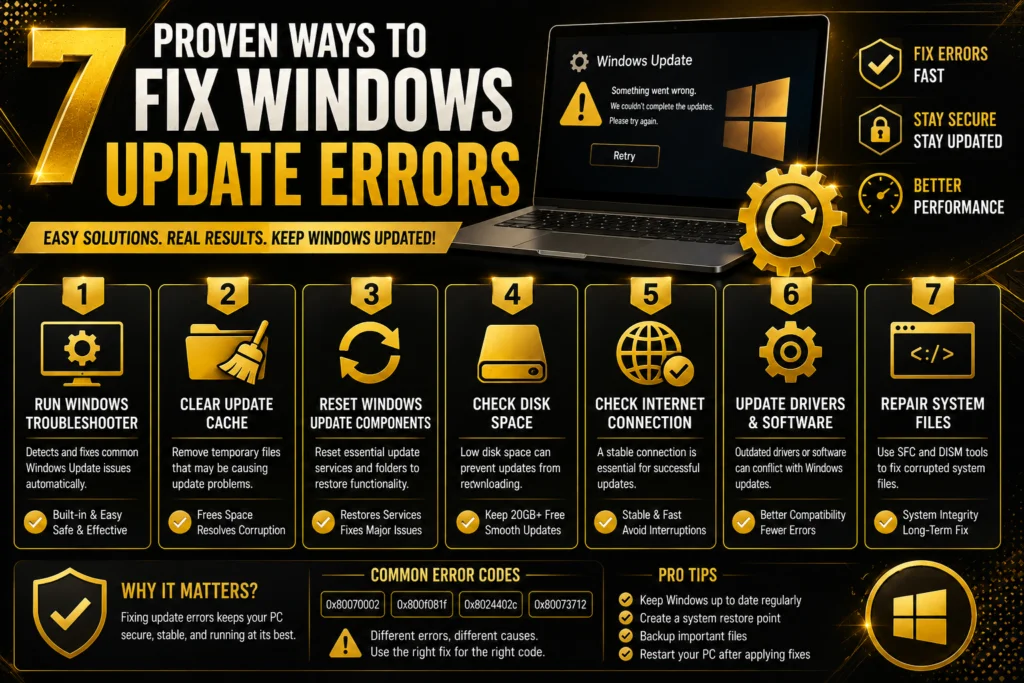
Windows update errors are annoying problems that prevent your operating system from downloading, installing or activating critical system updates and error-free functions. Most of these errors are accompanied by an eight-digit code that appears on your screen.
Unfortunately, this code does not always indicate the exact cause of the problem, so you may see a wide range of error codes from 0x80070002 to 0x800f081f. A number of different factors in your system can trigger such errors, ranging from corrupt update files to improper registry settings, connectivity problems, or complex system file conflicts during the replacement of system software elements.
Fortunately, the described problems can typically be solved by using the built-in Windows tools. Firstly, you need to visit the system’s troubleshooting module and try to run the Windows Update troubleshooter to eliminate simple causes of update problems.
Additionally, it may be a good idea to clean up your system’s update components by stopping the update process through Task Manager, deleting all files in the SoftwareDistribution folder, and restarting the system update service in administrative mode. If your update encounters an error due to improper system file configuration or corruption, you will need to launch DISM and SFC tools and execute default system repair commands.
Update error is a very irritating issue that makes it impossible for your OS to install or activate critical updates and error-free functions. In most cases, this type of errors is shown alongside with an eight-digit code appearing on the display. However, this code does not always help to understand the reason behind the problems; hence, there can be many errors from 0x80070002 to 0x800f081f.
There are numerous reasons why these errors occur including corrupted update files, wrong registry setting, problems with your system’s connectivity or complicated conflicts between system files while trying to replace system software components.
The good news is that these problems can be solved by means of the built-in Windows features. First of all, one should visit troubleshooting module and attempt to run Windows Update troubleshooter and get rid of minor causes of update problems.
Besides, you might want to clean your system of update component by stopping the update process via Task Manager, erasing all files in the SoftwareDistribution folder and rebooting your system update service in the administrator mode. If your system fails to install an update because of incorrect configuration or corruption of the system files, then DISM and SFC tools with default system repair commands will work for you.
Driver Errors
Drivers can make your Windows device like Wi-Fi adapter, Bluetooth, graphics card, printer, and audio hardware malfunction. The reason behind this malfunction might be out-of-date, corrupted, wrong installation, or the incompatibility of the driver. It is also possible that the device becomes problematic after the installation of a driver or the update on Windows. In this case, the driver itself can be the reason behind malfunction. To solve the problem, open Device Manager to find out the devices with the warning icon.
Right-click on the problematic device and click “Update driver” to see if there is a newer version of the driver. Additionally, you can also click “Roll Back Driver” in case the problem appeared after the update. Reinstallation of the driver would be useful if the installation itself became corrupted. For the best outcome, it is recommended to download drivers from the website of your laptop, motherboard, or hardware manufacturer. Don’t install drivers from unknown sources, since they may be either harmful or incompatible with your system.
You might also be interested in reading:
Windows 11 Running Slow? 15 Easy Fixes
10 Ways to Speed Up a Slow Windows PC
Bluetooth Not Working? 10 Simple Solutions
7 Proven Ways to Fix Windows Update Errors
Conclusion
While errors in Windows can be very annoying, there are a lot of simple actions that can fix many common errors on your computer. Blue screen errors, DLL errors, PC failure to start, update problems, and driver errors have various reasons and should be identified before taking any drastic measures. Such simple actions as restart, installation of updates, drivers check, corrupted system files repair, and using Windows tools for troubleshooting are usually sufficient for fixing the problem. Do not download unknown system files or drivers from suspicious sites because it can result in further trouble. In case of persistent error even after troubleshooting, it is better to backup the information you need and seek professional help.
The stability of the Windows ecosystem requires not only regular care but also a proactive approach to updating and troubleshooting. Despite the potential complexity of such OS interruptions as a sudden appearance of a Blue Screen of Death, absence of DLLs, endless boot cycles, inability to update, as well as problems with hardware drivers, they are rarely catastrophic.
Shifting the focus from reactive measures in terms of troubleshooting and applying native diagnostics tools of Microsoft will help you solve most issues without need to format your hard drive or seek the help of professionals.
The main idea behind long-term system stability is to create reliable routines of security and maintenance:Automate Your Protection:
Activate Windows Update in order to install critical updates and validated driver signatures.
Trust Native Infrastructures: Apply native diagnostics tools like sfc /scannow, DISM, as well as Windows Memory Diagnostic utility before applying any third-party repair utilities.
Use Safe Resources: Download all drivers and software frameworks from the official websites of the manufacturers only and do not use any third-party file sharing resources.
Make System Restore Points: Create them manually before hardware changes and registry modifications.