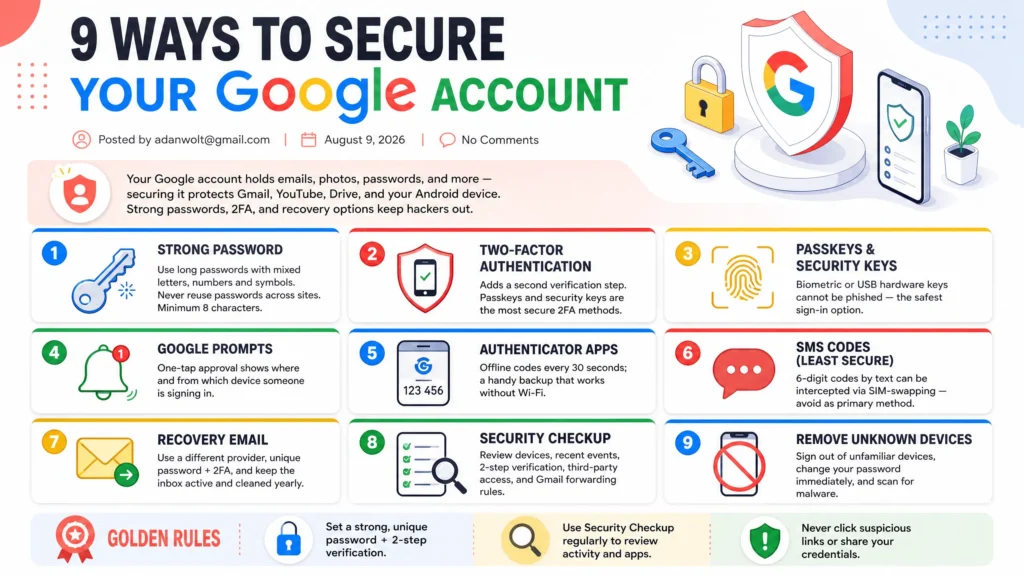
introduction
Google Account often stores vital data like emails, photos, contacts, documents, saved passwords, and settings. This makes this particular type of account worth protecting since anyone who breaks into it might gain access not only to this very service but to all other Google services related to this account. Luckily, there is quite a number of ways to increase your account security
For example, having a unique and robust password, enabling two-factor authentication, looking through authorized devices list, checking your account recovery options, and updating your security data are some of the actions which will definitely increase the level of protection and minimize the chance for hacking.
You have to be especially attentive about suspicious messages, links and requests to get access to your Google account from any third-party applications. In this article we will provide information on how to make your Google Account more secure.
If there is one thing you should secure beyond doubt, it is your Google account.
The reason is simple:
Gmail, YouTube, Google Drive, your Android phone, and saved passwords in Chrome are all connected to your Google profile. A single security vulnerability and you are finished. However, things are not as bad as they seem. The good news is that Google has a built-in security system that can prevent all attacks 100% if you configure it right.
Google Security in 3: The Ultimate Guide to Protecting Yourself OnlineSecuring Google nowdays requires a three-pronged approach because attackers are using new ways to hijack your account.
Authentication (Keeping Thieves Out) means making sure that only you can authenticate to your account. This is achieved by using strong passwords and passkeys or physical security keys.Verification (The Backup Plan) means having a second level of security so that even if someone guesses your password, they cannot guess your verification code.
That way, you will always be able to regain control of your account even if you are locked out. Account Recovery (The Safety Net) means always keeping options open so that you never lose access to your account.
Strong Password
Creating an effective password to protect your Google Account is one of the most crucial things. Avoid using simple passwords and words that may become easy targets for hackers. Use long passwords that consist of a variety of words, numbers, and symbols, or consider creating a password by means of a reliable password manager tool. Your password for Google account must differ from the passwords for the other websites and applications that you use since reusing the same password might lead to a higher risk for your Google account in case the data breach will occur on some other website. Do not give your password to other people, and never type in on some unverified site or link found in unusual messages. Password manager will simplify the process of password creation and secure storing without remembering everything.
A good password comes first.Hackers employ algorithms for testing countless number of possible character combinations per second, so short and weak passwords crack in literally no time.
Password Requirements from GoogleGoogle imposes the following requirements when creating and updating a password:
Minimum Length: at least 8 characters.
Maximum Length: up to 100 characters.Characters Combination: any combinations of letters (uppercase and lowercase letters), digits, keyboard symbols.Prohibited Elements: passwords may not include blank characters in the beginning or at the end as well as easily recognizable words such as 12345678 or password.
How to Protect Yourself by Making a Strong PasswordIn order to make an incredibly strong but memorable password, you can apply Passphrase Method:
Create a Phrase: come up with a random, memorable sentence (for instance, My cat loves eating green apples).Get First Letters: take the first letter of every word (Mclega).
Combine Randomly: add different types of case and symbols in place of some of the letters (for instance, Mcl@3gA!).
Two Key Points on Using a Password No Reusing: your Google password should not be used anywhere else since once the database is hacked by the cybercriminals, they will try these credentials automatically at Gmail.
Account for Storing Your Passwords: instead of writing down your passwords, keep them in a password manager (for instance, Google Password Manager, Bitwarden or 1Password) which generates random strings (kP9!vX2$mQ9_).
2FA
Two-factor authentication (2FA) is an added layer of security for your Google account which requires an additional verification step aside from your password. By having 2FA enabled even if someone knows your password they might not be able to gain access to your account due to them not having the second authentication element. Google provides multiple options for you to choose from including prompts on trusted devices, authenticator apps, security keys, and other available options.
To enable 2FA navigate to your google account settings and under the security tab select 2-step verification and follow the prompts to set it up. Using an Authenticator app or other available options like a security key would be the best option as it does not rely on SMS. Once you have enabled 2FA make sure to save your recovery options in case you ever lose access to your phone or other available options you set up during the initial setup of 2FA. Overall, two-factor authentication is one of the best ways to protect your google account from being compromised.
The Different Methods That Google Offers For 2FA (Best To Worst)There are different approaches that Google allows you to use to prove who you are. The best choice for you would be to have one primary method, and one back-up approach.
Passkeys / Security Keys (Most Secure)Description: Google uses your phone for authentication via a fingerprint or face scan.
Alternatively, it uses a USB hardware key (such as YubiKey).
Advantages: There is zero possibility to use phishing against this 2FA approach. It authenticates that you have the correct website URL before signing in.
Google Prompts (Very Convenient)Description: A full screen notification on your iPhone or Android appears saying “It’s you trying to sign in”.
Advantages: You click yes in order to authorize yourself, in addition it shows where and from what device you are trying to log in.
Authenticator Applications (Very Handy Back-Up)Description: Google Authenticator, or any other such applications generate codes every 30 seconds.
Advantages: It works in an offline mode regardless of whether your phone is connected to a Wi-Fi network or not.
SMS/Text message codes (Least Secure)Description: Google sends you 6-digit code by a text message.
Advantages: There is a chance that hackers intercept the text messages by SIM-swapping you.
Recovery Email
Using recovery email for your Google Account can aid in accessing your account again should you happen to forget your password or any other account settings were changed by another person unauthorizedly.
The best recovery email address is one you have consistent access to and it has a complex password and two-factor authentication. In order to add the recovery email, just enter your Google Account, select the Security tab and there you can configure your account recovery settings or recovery email settings.
You will want to have your recovery email up to date and accessible to you so you do not end up being unable to receive security notices sent to you or use your recovery information. Do not choose an email address which you do not have access to anymore because this will also make it impossible to reach out to you with all necessary security messages and notifications.
Critical Rules for a Recovery Email
To ensure your backup option does not turn out to be a security loophole, it is critical to adhere to a few rules regarding the recovery email. Firstly, it is essential to use another provider but with a different phone number and recovery options. Using another Gmail account with the same phone number may seem safe; however, it will give hackers an opportunity to infiltrate both accounts since they share the same underlying system.
Secondly, it is crucial to make sure that the account you used for recovery is secure. Ideally, it should have a unique password secured by two-step authentication. By doing so, you would prevent unauthorized access to your recovery email in case of a security breach.
The last recommendation is to make sure to clean and purge the inbox of the recovery email at least once a year. Service providers sometimes delete inactive accounts and recycle the email address; therefore, a hacker can use the recycled email to recover deleted Google accounts.
Security Checkup
Google’s Security Checkup is a helpful utility that can be used to check the security of your Google Account and find any possible vulnerabilities. It provides the user with information on the recent security activities, devices that are connected to the account at the moment, third-party applications that have access to the account and many more security-related settings.
In order to check the security of the Google Account, the user needs to log into the Google Account and visit the Security page, where the recommendations of Google will be found. In case the user finds any suspicious devices or activity, he/she should investigate it right away and make sure that the account is safe by changing the password or blocking any access.
The user needs to check all third-party applications and services that have access to his/her account and block any that are not needed anymore. Regular checks of the security of the Google Account will provide the user with such things as outdated recovery information, suspicious activities and unnecessary permissions.
What the Security Checkup ChecksThe tool separates the security of your account in five different categories:
Your Devices: Lists all phones, tablets, and computers that are logged in into your account. You will be able to revoke the right of those that are unfamiliar or old phones that you don’t use anymore with just one click.
Recent Security Events: Displays all sign-ins, password change, or recovery actions made within the last 28 days. This category also highlights any suspicious action like a login from an unfamiliar geographic location.
2-Step Verification: Ensures that 2FA is active and checks your backup options like your recovery phone and email are up-to-date.
Third-Party Access: Displays all third-party apps, websites or games that are authorized to access your Gmail, Google Drive or basic information about yourself. The list also includes those that are not used for a while so that you can deny them access.
Gmail Settings: Verifies your email forwarding rules and blocked senders to ensure that there is no forwarding rule set by a hacker to forward your incoming emails into another account.
Remove Unknown Devices
The process of looking into the devices associated with your Google account will help you spot any sign of unauthorized access. In case you notice a phone, computer, tablet, or any other device that you don’t recognize, then it is essential to look into it and not ignore it. Go to the Google Account you are logged in, select Security, and click on Devices or Recent security activity.
Look for the device which is not familiar to you and open it up. In case you are sure that you are not using that particular device or you don’t recognize it anymore, then click on Sign out. In case you think that there has been some access by any unknown person to your account, then change your Google password right away. Make sure that two-step verification is turned on. It is also recommended to look into the recent security activities and third-party access that you don’t recognize.
Remember, sometimes the name or location of the device might be not familiar to you due to shared devices, sessions, or even location errors. When in doubt, it is better to secure your account first.
Essential Next Steps After Sign-Out
Simply signing out of the device is not sufficient if someone managed to log in. In most cases, if the device was logged into the account, the user already knows the password, so it should be changed to a more secure one.
The following steps should be taken to ensure that the account remains secure:
Change the Password: Go to Google Password Settings and update the password using the passphrase option.
Update 2FA Keys: Make sure that no other security keys were added to the account if the intruder had access to an authenticator app or passkeys.
Scan for Malware: If the unknown device has a similar name to the user’s computer, there is a high chance that it has been compromised and infected with malware that allowed it to gain access to the account without any additional input. All files on the suspicious device should be scanned using an antivirus program (Windows Defender, Malwarebytes, etc.).
Here’s another article you may find useful:
7 Ways to Avoid Online Scams
Best Free Antivirus Software in 2026
Best Password Managers: 7 Top Picks
8 Best Free VPN Services to Try in 2026
Conclusion
Securing your Google Account is essential to protect your emails, photos, files, contacts, and other data. First of all, a strong and unique password and two-step verification should be set.
It is also necessary to add a secure recovery email to have an opportunity to restore your account in case of losing access to it due to any issues. In addition, one should use Google Security Checkup feature to review recent activity, devices, and apps that have access to their account. If everything is ok, they will see the latest activity on their Google Account dashboard and apps authorized to use their data. In that case, it is critical to sign out of unknown devices and change the account password right away and review the security settings periodically.
Users should not click on any suspicious links and give access to their data to other people or organizations. By following a few security recommendations, you will significantly increase your account’s protection level and reduce the risks of being hacked or losing access to your data.