Introduction
Windows updates play a critical role in ensuring that your PC is updated with new security patches, drivers, and applications. Nonetheless, at times, the Windows Update service might fail to download and install the available updates; it can produce error codes and even get stuck while trying to update the system. Several causes may include corrupted updates, inadequate storage space, internet connectivity problems, outdated drivers, among others.
Fortunately, there are a number of ways to rectify most of the errors produced by Windows Update through easy troubleshooting techniques and built-in Windows troubleshooting options. Here, we shall learn some of the methods to solve the frequent issues with Windows Update on Windows OS.
The error with Windows Update occurs when there is some problem in downloading, validating, or installing updates in the operating system. This kind of error usually happens because of damaged cache files, faulty background processes, or system files which create problems for the update process. If left unattended, these errors would make you more vulnerable to security risks and deny you any performance enhancements.
Common Error Codes
Windows update error codes could appear when the update process is not completed successfully, and each code should be considered separately because there are various reasons why a particular error occurred. Several prevalent software update codes consist of 0x80070002 error, which could be linked to missing or corrupted files located in a particular catalog, or 0x800f081f update error, which is usually associated with the fact that system files were not found.
Numerous other issues could be connected to the insufficient quantity of memory or a malfunctioning system component, network problems, and software and driver conflicts. Anyway, any particular error code should be studied separately considering the characteristics of Windows version, and therefore, an individual approach to each situation is vital.
It is essential to remember the particular error code and try to find the relevant information on the official Microsoft website about it, and it is better not to use particular programs promising to eliminate various update errors, as they usually refer to several error codes, not one particular one. Anyway, it is vital to understand the essence of your error code to know the precise method for its elimination.
Windows Update Error codes serve as the precise fingerprint to identify which specific sub-system or dependency failed while the system was installing the update. In the context of Windows updates, such failures usually produce eight digit-long hex strings beginning with “0x80”. They are not just arbitrary codes but actually produced by Windows error handling to help IT professionals and end-users find out what caused the installation problem.
The majority of such errors can be attributed to one of the few system problems, namely database corruption, network timeouts, access control issues or incompatible hardware drivers rejecting the new code. Decoding these unique hexadecimal strings is the best way to avoid spending time on generic solutions and use the specific approach to fix the system problem.
Depending on the source of the error, different methods are used. Network errors should be fixed with router reset and DNS flushing, while file system errors will require using built-in deployment tools such as DISM and SFC to rebuild local Windows payload image. Identifying whether the problem is a dead background process, the whole system drive or some digital signature issue converts a system hang to configuration problem.
Windows Troubleshooter
Windows Update Troubleshooter is a built-in automated diagnostic program developed by Microsoft to detect and solve typical problems with the update infrastructure to prevent the system from failing to install important OS updates. Once launched, the utility thoroughly analyses the update infrastructure to detect any potential problems with it without the necessity of manually fixing any technical issues.
This utility operates by evaluating the update infrastructure through multiple levels of analysis, and proactively checking for such problems as inactive background network services, stuck update queue, conflicting cryptographic signatures, and local databases corruption. By running a series of diagnostic scripts, the tool can instantly detect if any of the important update channels became deviated from their standard configuration.
Once the bottleneck or the problem with infrastructure is detected, the utility automatically applies a set of fixes to restore the full system functionality. The fixes applied by the tool include restarting important background tasks such as the Background Intelligent Transfer Service (BITS) and the main Windows Update service itself, resetting network handshakes, clearing up the temporary update cache folders and rebuilding broken registry paths.
The tool also checks the local network configuration to be sure that your computer is able to securely connect to the distant Microsoft verification servers. For regular PC users, this native utility is the primary line of defense of their system. The tool safely eliminates minor administrative permission conflicts and temporary file glitches without posing any risk for the personal data or changing the desktop environment.
Although this utility may not be able to fix the complex issues with the Component Store and driver architecture, running this automated repair tool is still the easiest way out that prevents one from doing some complex manual work on command line or reinstalling the whole OS. It is a convenient and easy way to keep your machine healthy and safe from potential troubles.
How to access the utility Windows 11 navigation.
Open Settings > System > Troubleshoot > Other troubleshooters > click Run next to Windows Update.
Windows 10 navigation. Open Settings > Update & Security > Troubleshoot > Additional troubleshooters > select Windows Update and click Run the troubleshooter.
One of the methods to solve the problem of failing updates is using Windows Update troubleshooter. It is an inbuilt tool that can automatically detect and fix the reason for the failure of updates. Windows Update troubleshooter can identify issues concerning Windows Update settings, services and other parts of the OS.
To start Windows Update troubleshooter on Windows 11 you need to go to Settings > System > Troubleshoot > Other troubleshooters, press on Windows Update and run it. You should follow the steps described there. In case the issue is detected by the troubleshooter, it will be automatically solved based on the recommendations from the program. Then you should reboot your computer and see if the update installs now. If not, make notes of all information provided by the troubleshooter and move on to another method of solving the problem such as clearing disk space, fixing system files, or restarting Windows Update services.
Clear Update Cache
Sometimes, corrupt and incomplete Windows Update files could cause problems in the download and installation process of new updates. By cleaning the Windows Update cache, users can get rid of the temporary files and start the update process anew. Before cleaning the cache, it is important that all applications are closed, and users have administrator privileges. The Windows Update cache file is usually found in the SoftwareDistribution folder, which will not be a problem since Windows is capable of creating it when necessary.
A more secure way is to stop the Windows Update service, clean the cache folder, and resume the service once again. Users can accomplish this by using the admin tools available in Windows or the elevated Command Prompt. Cleaning the cache does not usually delete users’ personal files but users are advised not to delete other Windows system files. If the problem persists, the possible reason could be something else and not the corrupt update cache.
The Windows Update Cache is stored in the SoftwareDistribution folder as a temporary storage for pending system updates. However, this folder often causes issues such as update freezes, looping downloading process, or errors such as hexadecimal code boxes. Deleting this folder resolves such problems as the operating system creates new system files directly from Microsoft servers, thus not using the corrupted cache data.
The deletion process requires administrative access to the operating system since Microsoft locks the files in the SoftwareDistribution directory, thus making it inaccessible while the system is updating. The best way to clear it is to use the Command Prompt as an administrator and stop all background processes that Windows uses while installing or updating the operating system.
Clearing the Windows Update Cache Step-by-stepTo clear the Windows Update Cache, follow these steps to terminate all background processes and delete the corrupted database, thus allowing the operating system to reestablish the connection to Microsoft’s servers.
The first step requires opening the Command Prompt application as an administrator. The user can do this by clicking on the Win logo at the bottom of the screen and searching for cmd. Then, right-clicking on the Command Prompt and selecting Run as administrator:Next, stop all background processes by the following commands:
Reset Components
The resetting of Windows Update parts is a complex operation involving the restoration of the patch distribution system, which will correct problems such as corrupt registry entries, corruption of data, and incorrect certificates when conventional diagnostic tools prove ineffective. The procedure, which does not lose any information belonging to users, entails stopping services such as BITS, emptying local caches, and re-registering DLL files so as to establish an entirely new connection to Microsoft’s servers.
Resetting Windows Update components can work effectively in case updates keep failing, getting stuck, or displaying the same error messages despite some basic troubleshooting. It allows resetting critical Windows Update services and folders in order to allow Windows to generate new update files.
Make sure you close any open applications and that you have administrator rights before resetting Windows Update components. Resetting usually includes stopping the services such as Windows Update, Background Intelligent Transfer Service (BITS), and Cryptographic Services, renaming the SoftwareDistribution and Catroot2 folders, and then restarting the services again.
Renaming those folders is usually more reliable than deleting critical system files manually because Windows will be able to re-create them during a new update attempt. After performing the resetting, restart your PC and see if updates are available from Settings → Windows Update. Otherwise, the cause may be damaged system files, low disk space, driver conflicts, or other issues with your operating system.
Here’s another article you may find useful:
Windows 11 Running Slow? 15 Easy Fixes
10 Ways to Speed Up a Slow Windows PC
Bluetooth Not Working? 10 Simple Solutions
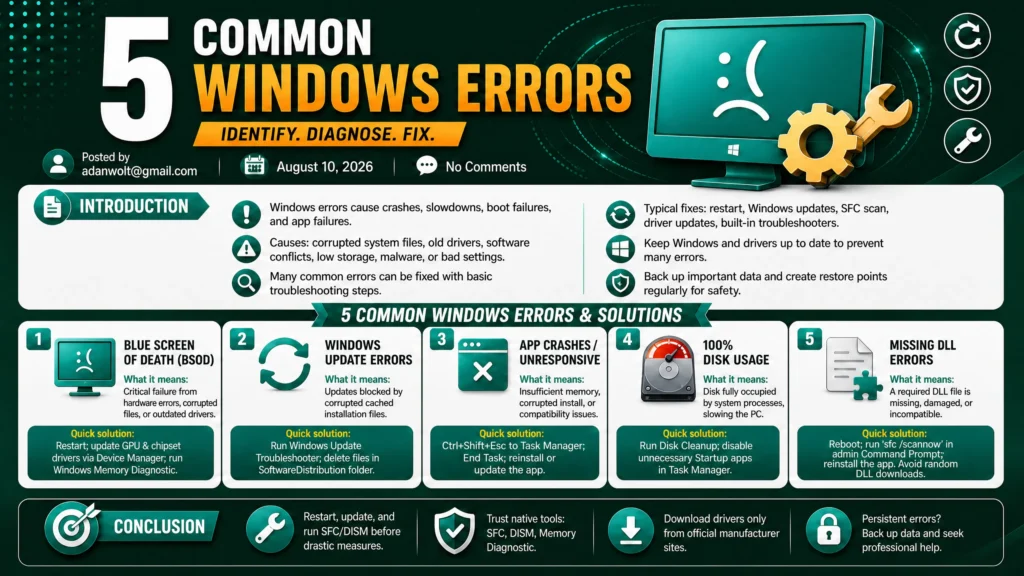
5 Common Windows Errors and Their Ultimate Fixes
How to Remove Viruses from Windows: 7 Easy Fixes
Conclusion
Although Windows Update failures might seem like an annoying issue, many of them can be easily fixed. The very first thing to do is to identify the problem using the error code and see what solutions are proposed by Microsoft for that particular issue.
Another helpful thing is to run Windows Update troubleshooter as it may automatically discover some typical problems. In case there is no success in performing an update, you need to try to delete the update cache or even reset Windows Update components.
In addition, you should ensure that your PC has free space, stable connection to the Internet and current drivers installed. When these approaches cannot help to fix the issue, you might try to repair the corrupted system files using some tools included in Windows.
Remember that when troubleshooting Windows Update failures, you should be extremely careful and never delete the system files manually.
Ensuring the stability of your Windows Update mechanism is vital if you want to keep your OS from potential threats, instability, and poor software performance. Solving update problems will not be connected with reinstalling your entire operating system right away. It will be possible to find out the causes of problems and fix them step by step, ranging from using the Windows Troubleshooter to removing corrupt update caches.
Consistently applying patches is necessary if you wish to keep your files safe and work well with new software and hardware drivers.Next Steps for Maintaining Your SystemCheck your disk space weekly.