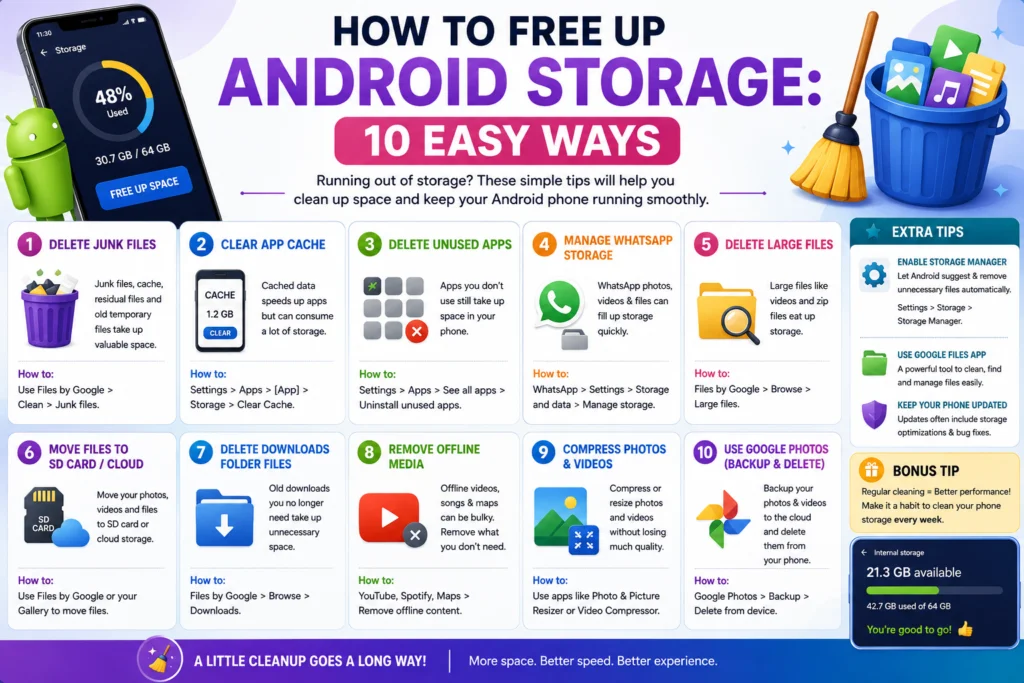
Introduction
The Android smartphone is an amazing machine that gives you a lot of freedom in choosing what to do with it, including selecting the apps to run. However, if you use your android phone for a while and do not take care of its memory, there is a high probability that you may run out of storage space.
You may have many apps, photos, videos, and various downloads, including cache taking a lot of storage. It can also happen that your phone has plenty of free space, but it is not enough for something you want to store. Moreover, in time, apps’ data, apps’ cache, photos, videos, and downloads can fill your android device. You may want to delete some files to create free space, but it can be difficult to know what to delete.
Luckily, there is no need to lose important personal data or buy a new phone as Android offers you several handy tools which allow you to free up space on your device. To do that, you may want to clear the cache of your apps, delete unwanted downloads, videos, photos, or apps, or even back up your photos in the cloud.
In this article, you will find out some useful tricks that will help you free up space on your android phone. You may also find out how to clear cache, delete junk, and other useful stuff that will significantly help your phone’s performance if it runs out of storage space.
This should not be taken to mean that buying a new smartphone or paying for an expensive cloud service is the only way of freeing up space in your Android smartphone. With time, your phone ends up accumulating duplicate files, large application caches, unnecessary downloads, and system junk that end up taking away from the space available on your phone. This can easily be done through system cleaning, media file optimization, and use of in-built storage features.
Why Storage Gets Full
Storage space of an Android phone could become full due to the regular usage of a mobile device. Photos and videos are likely to take up the most space on an Android phone; however, the amount of space occupied by these files will depend on whether you shoot videos in HD or download plenty of videos via messengers. Installed applications and games may occupy considerable space on your device; there may also be temporary files and downloads stored.
There may be unnecessary files in the Downloads directory of your phone such as documents, photos, videos, and others that you may not use anymore. Messengers may save duplicates of photos, videos, voice messages, and other media files onto your phone.
Space may also be consumed by system files and application data. Full storage may cause difficulties with downloading files and installing new applications or shooting new photos and videos. It is essential to check your storage space on a regular basis in order to understand what type of files occupy the most space and delete unnecessary ones.
Your Android gadget fills up with a variety of files both created by you and saving automatically. Thus, you may run out of storage space even if you do not spend much time downloading new applications or taking pictures.
The Main Culprits That Steal Your Storage SpaceBloating Apps’ Caches: Applications such as Tik Tok, Instagram, and browsers tend to store images and videos right on your device so that they can open them instantly next time you need them. Hence, the app’s cache directory may easily consume a few gigabytes of space on your device.
Hidden Media in Messaging Software: Applications for chats and VoIP (voice over internet protocol) like WhatsApp and Telegram allow you to share media (images, videos, memes, stickers, etc.) and record voice notes. All the files stored in your conversation are hidden and occupy space on your device’s memory.
Downloading Music or Movies to Watch Offline: Some users have the habit of downloading playlists from Spotify, movies from Netflix, or YouTube videos to watch them without using the Internet. Such files need to be stored on your device’s internal memory until you decide to remove them.
Camera’s High-Quality Mode and Videos’ Resolution: Smartphone cameras usually take pictures using very high resolution (e.g., 32 megapixels per pixel) and record videos in 4K or 8K resolutions (e.g., 300 MB per minute of recording). The higher the size, the more storage space it occupies.
System’s Update Files: System’s update and log files, as well as apps’ update files, accumulate over time and consume much space on your device’s internal memory.
Delete Cache
The cache is defined as temporary files created by applications on your Android device, which will help to make your phone faster by storing content for quick access. With time, these files can increase in number and take up a huge part of your storage. Clearing out the cache of an application does not mean losing your documents, accounts, or app settings but rather helps to recover some storage space from these applications.
You can do this from the menu Settings → Apps → See all apps, where you can click on the application, and click on the option Storage & cache then on Clear cache. Note that the menu names can change depending on your phone brand.
Make sure that you clear the caches of applications that take up much storage space, for example, your browser or social media application. Do not click on Clear storage or Clear data since they will clear out your app settings and locally saved information.
Cleaning the cache memory of your apps is the quickest way to reclaim several gigabytes of space without losing any of your personal information or login details. Cache files refer to temporary files like thumbnail images and script codes used by the apps to load quickly in future visits.
Deleting Cache Memory in Android Method 1: The One-Stop Quick Clean-Up (Recommended)Launch the Files by Google app that comes pre-installed in most Android phones.Find the Clean tab at the lower left corner of the screen.Find the junk files or Temporary app files card.Clean all the junk and cached system data in one single click.
Method 2: Removing Cache of Heavily Media Using Apps (Instagram, TikTok, Chrome)Go to your device’s Setting menu. Find Apps (or Apps & notifications) option. Select All Apps and choose a heavily media-using app (such as TikTok or YouTube). Find Storage (or Storage & cache). Clear the Cache (Never select “Clear Data” option).
Remove Duplicate Files
Duplicate copies of photos, videos, documents and other files may unnecessarily occupy space on your Android phone without offering any advantages at all. The duplication of files occurs when you end up downloading the same file several times, downloading pictures via a messaging app, or creating more than one copy while editing and sending files. In order to free up space, go into your phone’s Files or File Manager and find files which can be deleted as they duplicate others or are no longer necessary.
Some models of Android phones also have a feature which helps to detect the duplicate files on your phone as well as offer suggestions for deletion. Remember to check the files before you delete them, to make sure that the one being deleted is not an important copy. It may be a good idea to save important pictures and documents on cloud storage or somewhere else before cleaning your phone.
Duplicate files such as photo copies, unintended double downloads, and repeating music clips consume much-needed internal space quietly. Searching for these files manually is time-consuming, but you can easily detect and erase them within seconds through the use of free and available system features.
How to Delete Duplicate Files Instantly
Method 1: Through Files by Google (Universal Android)Launch the Files by Google application on your device . Click on the Clean tab which is situated in the lower part of the application screen. Locate the Delete duplicates box and click on Select files.
This will highlight original files next to their duplicates. Click on All duplicates button above the list to automatically highlight the duplicate files. Click on Move files to Trash at the bottom of the page to delete them.
Method 2: Through Samsung My Files (Galaxy Devices)Launch the My Files applicationScroll down to Manage storage section. Find the Duplicate files category and click on it.Click on the radio buttons beside the duplicates that need to be deleted, then click Delete at the bottom.
Delete Downloads
The Downloads folder can use up a significant amount of memory on an Android mobile phone. The files that have been downloaded from a web browser, messaging application, email, and other applications could be saved on your phone but you don’t actually require them anymore.
Access your phone’s Files, File Manager, or Downloads application and see the downloaded files that exist on your device. Get rid of the files that you don’t actually need anymore. Do this with care as there could be certain downloads that you might find useful in the future.
Save those important files to cloud storage, SD card, or another device and avoid deleting them if you think you will require them in the future. This is a fast and easy way of saving some storage space.
The Downloads folder turns out to be a big trap in terms of storage management for Android devices. Every time you use some PDF menu, some email attachments, browse images, or even some APK installer, you create new folders that are always stored in your Downloads folder.
How to Properly Remove Your DownloadsHow to do it safely?
Way No. 1: Using Files by Google app (all Android devices)Go to the Files by Google application.Click on the Browse tab in the bottom part of the screen.Choose the Downloads option in the Categories section.
For removing all your files: Click on the three dots in the upper right-hand corner and select Select All.
For selective removal: Press and hold on large files and outdated installers.Click on the Trash can icon in the upper left-hand corner and confirm removal.
Way No. 2: Using My Files app (Galaxy devices)Open the My Files app.Click on the Downloads folder on the main dashboard. Press and hold on any file to enter into the selection mode. Check the files which you want to remove from your device and tap Delete (Trash icon).
Note: Don’t forget to go to the Trash or Recycle Bin folder later on.
Move Files to SD Card
If Your Android Phone Has A MicroSD Card
If your Android phone has a microSD card slot, you can free up space on your phone’s internal memory by transferring large amounts of personal data to the microsd card. Using your phone’s files or file manager application, you can move photos, videos, music, documents, and other personal media files from your phone’s internal memory onto the microsd card.
Simply open the file manager on your phone, highlight the desired files you wish to transfer, select move or move to, then select the microsd card as your destination for transferred files. Videos and photos are the types of files most useful to transfer as they can often take up multiple gigabytes on your phone’s internal memory.
Before transferring large amounts of data onto the microsd card, you should ensure there is enough free space on the microsd card and that the microsd card is functioning properly. Some Android phones do not have built in support for microsd cards while others limit which applications can be transferred to the microsd card.
You should not remove the microsd card from your phone while files are being transferred as this can cause data loss or data corruption to the transferred files. Transferring personal files from your phone’s internal memory to a microsd card is an easy way to free up internal phone memory while keeping your personal data backed up and accessible.
If your Android has a removable memory slot, transferring all of your heavy photos, videos, and documents to a microSD card is a great method to immediately free up space on your internal storage. This action will allow you to preserve access to your files and make some room on your device for new applications and system updates.
How to Transfer Files to Your SD Card ?
Method 1: With Files by Google (All Android Phones)Open the Files by Google application.Click on Browse tab on the bottom and choose one of the categories (Images, Videos).Long press the files that need to be moved and click on the three dots in the right-upper corner.Choose Move to (or Copy to for backing up your files on the phone).Click on SD Card option, choose the folder where you wish to move your files, and press Move here.
Method 2: With Samsung My Files (Samsung Phones)Open the preinstalled My Files application.Click on Internal Storage and go to the folder where your files are stored (DCIM for photos and Download for other files).Long press the files that need to be moved and click on Move button on the bottom panel.Go back to the dashboard of My Files app, click on SD card option, choose the folder you wish and press Move here.
Cloud Backup
A good practice for liberating storage space on your Android smartphone is using cloud backup. For example, applications like Google Photos will automatically back up your photos and videos on your Google account; hence, you can remove your local copy whenever there is a need for extra storage space.
Ensure that the files are backed up completely before deleting any files. You can use cloud backup as an alternative method of saving important documents and personal files without filling up the storage space of your mobile phone.
Once the files are backed up, go ahead and delete the local copies by using the storage management feature on your phone. Remember that the cloud backup space offered is always limited; hence, you might have to buy more storage space once your backup files exceed your limit. Cloud backup is ideal for people who have numerous photos and videos.
Backing up your files to the cloud is the best way to free up space on your phone. This way, by saving your photos, videos, and files to an online server, you can delete them from your device without worry and restore them at any time while you have an internet connection
The Best Free Cloud Backup Solutions
Google One (Google Photos / Drive) – 15GB of free storage space for photos and videos with Google Photos and another 15GB for file storage with Google Drive. Gmail also uses this 15GB.
Microsoft OneDrive – 5GB of free cloud storage space for photos and files. It also syncs seamlessly with Windows computers, ideal for students and workers who use them.
MEGA – 20GB of free encrypted cloud storage space.
How to Auto-Sync and Free Up Space via Google Photos
Launch the Google Photos app on your Android device. Then, tap your profile picture/icon on the top-right corner of the screen.
Go to Photos settings (gear icon) > Backup. Toggle On the switch to enable auto-backup of your photos and videos to Google Photos.
Once you’ve backed up your photos and videos to the cloud, go back to the main screen, tap your profile icon again, and select Free up space.
Google Photos will calculate how much space you can free up by deleting the photos that have been backed up to your cloud storage. It will delete the images and videos from your phone’s internal storage, freeing you from having to manage gigabytes of data.
Best Cleaner Apps
The cleaner apps will assist you in finding unnecessary files and saving space in your Android phone. But you need to be careful while selecting such apps as some cleaners from third parties can display lots of ads or request permissions that are unnecessary. You need to know whether your phone has in-built storage management tools before you install any cleaners. File by Google is the best app to locate files which are larger in size, files that are duplicate, unused apps and others that consume unnecessary space. When using a cleaner app, it is important that you review their suggestions before deleting any and avoid deleting files whose name you do not recognize. In addition, you need to avoid downloading apps which promise unrealistic results and state that they make your phone speed up with one click only. In most cases, you have to use the in-built tools of storage management in Android phones and file management app to manage storage.
How to choose a cleaner app for Android in 2026? Beware of various junk cleaners in Google Play selling fake “RAM boost” technology – the most useful Android file managers sort out hidden cache, old backup files, and other data safely without performing shady background operations.
Top Cleaner Apps for Android in 2026
File manager app by Google is the safest solution as it comes preloaded on most devices and does not bother users with advertisements. The program’s AI analyzes the phone’s storage space and suggests which photos, videos, or files to delete permanently from the device. Files by Google provides intelligent caching management and an option to remove leftover data from uninstalled applications.
SD Maid 2 / SD Maid is another popular cleaning utility known for its advanced system scan called “Corpse Finder.” This file manager helps get rid of all the electronic waste stored in the device’s deep directories after apps are uninstalled. The program offers additional features like managing APK files, organizing storage space, and searching for specific data.
Cleaner android version prioritizes cleaning apps’ cache and system data. It is recommended to use this tool in browsers while being wary of the software’s permission requests. Developed by Piriform, the file manager’s official android version offers a decent cleaner and system optimization suite with real-time CPU and RAM monitoring.
Finally, AVG Cleaner is a free utility from AVG Security that specializes in decluttering apps and photos. The program’s smart media optimizer scans the gallery to find low-quality, out-of-focus, or duplicate pictures that may take up significant storage space.
Explore this related topic here:
10 Best Free PDF Tools
7 Best Cloud Storage Services
Android Phone Running Slow? 7 Easy Fixes
Conclusion
There is a simple way to make more space available on an Android smartphone. It can be achieved through getting rid of unnecessary downloads, emptying caches of applications, deleting duplicate files and getting rid of apps that are not needed anymore. In case the smartphone is compatible with a microSD card, moving videos, photos and documents to it will create even more internal space.
Cloud backup is another method that can prove useful when trying to save the important files and reduce the volume of data stored directly on the smartphone. There are trusted applications such as Files by Google that can assist in finding unnecessary large files. It is always necessary to make sure that the important files are checked before deleting anything.
The procedure of reclaiming the storage space on a regular basis is a useful practice, which does not require spending any money on purchasing new hardware or upgrading the cloud storage.
The maintenance is effortless, if you make it a habit to clear caches of the most storage-consuming applications, delete unnecessary duplicates and transfer the media files to the cloud. The following checklist will assist you in the process of keeping the smartphone’s storage clean and organized. The final list of storage maintenance procedures includes such daily, weekly, monthly and yearly tasks as the ones below.
Daily cleaning habit: swipe the message tab to access the settings of the default messaging application and disable the background downloading of any media files in group chats.
Weekly cleaning habit: open the Files by Google app, switch to the Clean tab and delete temporary files and duplicates.
Monthly cleaning habit: open Google Photos, make sure that all photos and videos are stored in the cloud, and delete the local copies using the Free up space button.
Yearly cleaning habit: delete the unused apps and games, which you have not opened for the last six months.